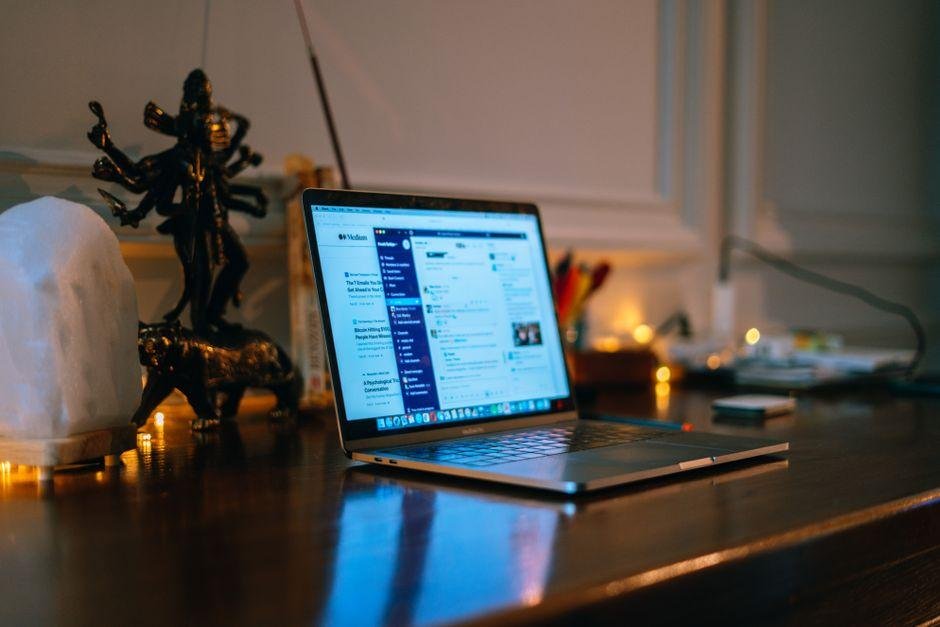
That forgotten laptop sitting in your closet still has plenty of life left in it. Skip monthly cloud storage fees. You can turn that laptop into a private home server using Syncthing. This free tool syncs your files. It keeps photos, videos, and documents updated across your devices. No data goes to a corporate server. Laptops make great servers. They use very little power, run quietly, and have a built-in battery. A machine with 4GB of memory handles this task easily. Setting up your private cloud takes under an hour and gives aging hardware a useful second life. Your data stays under your own roof, protected from unexpected cloud service price hikes and privacy changes.
Why an Old Laptop Makes an Ideal Home Cloud Server
An older laptop handles background sync duties very well. It beats cheap network drives. Desktop computers draw lots of power when left on. Laptops use efficient parts built for mobility. Running one all year costs only a few dollars in electricity.
The secret weapon of a laptop is its battery. It acts as an Uninterruptible Power Supply, or UPS. A UPS is a backup battery system. It keeps your computer running during power failures. This gives you time to save your data and shut down safely.
The built-in screen and keyboard offer another big advantage. If your network goes offline, you do not need extra cables. Just open the lid, fix the setting, and close it. Pairing Syncthing with this hardware gives you fast personal storage for free.
Preparing the Laptop: OS Selection and Power Tweaks
First, back up your important files. Then, wipe the hard drive clean. Erasing old software frees up system memory. It also stops background programs from slowing down your file transfers.
Next, choose a lightweight operating system. Windows uses too much memory for basic syncing tasks. Use Linux instead. A Linux distro, short for distribution, is a free operating system. Options like Debian or Ubuntu Server have no heavy graphics. This leaves all system power for your files.
Next, configure your power settings. By default, laptops go to sleep when you close the lid. You must change this setting. Your laptop must stay awake when the lid is closed.
Follow these practical steps to finish hardware preparation:
- Create a bootable USB drive: Download Linux. Write it to a USB drive using a free tool like BalenaEtcher.
- Install the operating system: Boot from the USB. Choose the option to erase the main drive during setup.
- Disable sleep on lid close: Edit the file at /etc/systemd/logind.conf. Set the lid switch action to ignore.
- Connect wired networking: Plug an Ethernet cable into your router. It is much faster and more reliable than Wi-Fi.
Step-by-Step: Installing and Initializing Syncthing
Installing Syncthing takes only a few clicks. Download the software from the official site. On Linux, you can use your package manager. On Windows, just extract the downloaded zip file.
Run the app to start the daemon. A daemon is a quiet background service. It syncs files without needing an open window. Syncthing will open your web browser automatically. This web interface lets you manage your folders and devices.
If the page does not open, type localhost:8384 into your browser. The number 8384 is a port. A port is a digital doorway for network traffic. Create a strong admin username and password right away. This stops other people on your Wi-Fi from changing your settings.
Syncthing vs Cloud Alternatives: Feature Comparison Table
Commercial clouds charge around $2 to $10 monthly as of September 16, 2026. Self-hosted software costs nothing. Check the official sites for current pricing.
| Feature or Spec | Syncthing Home Cloud | Nextcloud Self-Hosted | Commercial Cloud (Google/Dropbox) |
|---|---|---|---|
| Software Cost | Free open source | Free open source | Free tier, then $2-$10 monthly |
| Data Storage Location | Your own hardware | Your own hardware | Company data centers |
| Built-in Battery Backup | Yes (uses laptop battery) | Yes (if installed on laptop) | Not applicable |
| Setup Difficulty | Easy to moderate | Moderate to complex | Very easy |
| Central Server Needed | No (direct device sync) | Yes (central host required) | Yes (corporate server) |
Why an Old Laptop Beats a Dedicated Server
A decade-old processor handles file transfers very well. Many people buy expensive Network-Attached Storage (NAS) boxes. A NAS is a dedicated storage device. An old laptop works just as well and costs much less.
A dual-core processor with 4GB of memory easily handles a whole home. Need more storage? Plug an external drive into a USB port. As of September 16, 2026, a 2TB external drive costs about $60. Check online stores for sales before you buy.
Laptops run very quietly. They do not have loud server fans. You can hide the laptop on a shelf. You will not hear any annoying whirring sounds.
Preparing Your Hardware and Installing the Software
Clean your laptop before setting it up. Use canned air to blow dust out of the vents. Keep the laptop on a flat, hard surface. This prevents overheating during big file transfers.
Set Syncthing to run automatically on boot. On Linux, use systemd to launch the service. This ensures sync resumes after a power cut. On Windows, add Syncthing to your Startup folder.
Turn on HTTPS in the settings. This encrypts your connection to the admin panel. It stops anyone on your network from stealing your password. You can also set speed limits here. This stops syncing from slowing down your streaming or gaming.
Connecting Devices and Managing Your Folders
Syncthing uses peer-to-peer (P2P) connections. This means your devices talk directly to each other. No files go to a third-party cloud. Each device has a unique code called a Device ID.
To connect a phone, open Syncthing on both devices. Scan the QR code on your phone using your laptop. Both devices must approve the connection before files can sync.
Now, choose which folders to share. Set your phone to “Send Only” to back up photos. If you delete a photo on your phone, the server keeps it. Set your server to “Receive Only” to protect your master copy.
Syncthing uses block-level transfers. If you change a small part of a file, it only syncs that part. It does not re-upload the whole file. This saves internet bandwidth and makes syncing very fast.
Pairing Devices and Configuring Automated Folders
You can use rules to exclude certain files. Ignore patterns let you skip temporary files or system trash. This stops junk files from wasting your storage space.
Enable file versioning in your folder settings. This saves older copies of your files. If you delete something by mistake, you can recover it easily.
You can customize sync schedules to save phone battery. Set your phone to sync only on home Wi-Fi. You can also set it to sync only when charging.
Securing Your Remote Access and Network Connections
Secure your server to keep hackers out. Set up your firewall to block unused ports. A firewall acts as a digital security guard. Open only port 22000 for sync traffic and port 8384 for admin access.
Do not open your router ports directly to the internet. Online bots constantly search for open ports to hack your devices.
Instead, use a Virtual Private Network, or VPN. A VPN creates a secure tunnel to your home network. Free tools like Tailscale let you connect from anywhere. You can access your files safely on the go.
Frequently Asked Questions
Does Syncthing store my files on a central server?
No. Files sync directly between your devices. Your photos and documents never touch a corporate server.
Will leaving an old laptop running all day drain a lot of power?
No. Idle laptops use very little power. Closed laptops draw under 15 watts. Running one costs just one or two dollars a month.
Do I need a fast internet connection to use Syncthing at home?
No. Local transfers use your home Wi-Fi. Your internet speed does not matter. Local syncing uses zero internet data.
What happens if my old laptop crashes or turns off?
Syncing pauses while the server is offline. Once the computer turns back on, syncing resumes automatically. Your files will not get corrupted.
Can I connect a phone or tablet to this setup?
Yes. Android devices use the official app. For iOS, you can use a compatible app like Möbius Sync.
Final Verdict: Building a Sustainable Home Cloud
Using an old laptop as a server saves money and protects your privacy. Modern sync tools manage your files while using very little electricity. A little basic care keeps your laptop running for years.
Follow this routine maintenance checklist to keep your home cloud healthy:
- Monitor drive health: Run regular drive scans to detect wear before your hard drive fails.
- Clear cooling vents: Blow out dust with canned air twice a year to keep the laptop cool.
- Automate system updates: Turn on auto-updates for your OS to keep it safe from security bugs.
- Schedule monthly reboots: Restart the laptop once a month to clear memory and keep it running fast.
- Maintain offline backups: Syncing is not a true backup. Keep a separate copy on an unplugged external drive.
Turn your old tech into a home server. It protects your data without monthly bills. Check online store prices if you need extra drives as of September 16, 2026.