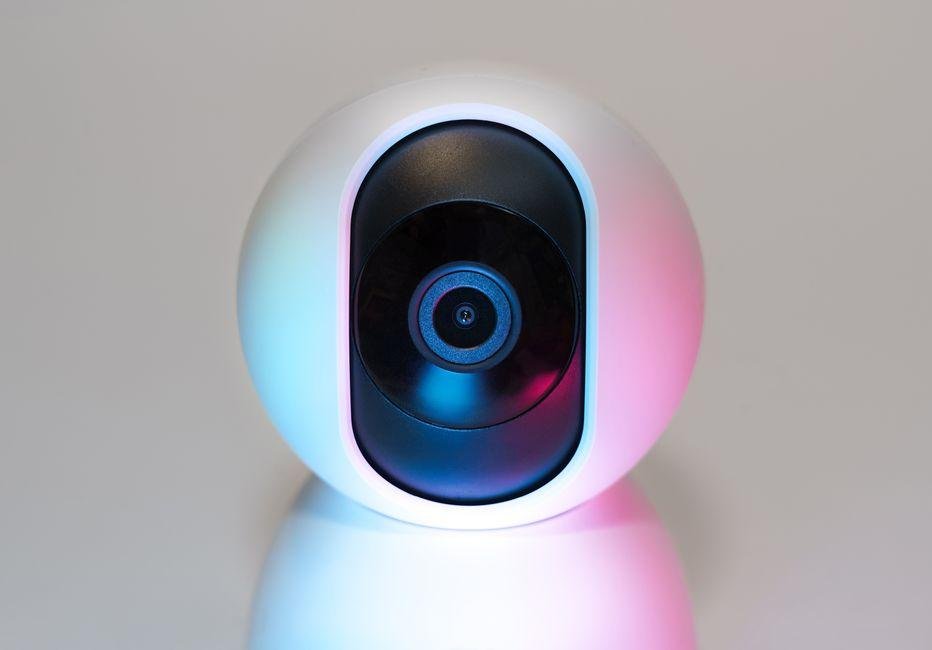
Getting different smart home brands to work together used to take complex wiring or paid hub hardware. If you bought Wyze cameras for their low prices and Eufy models for their detailed video, you likely want one screen for everything. Google Home acts as a free central app that lets you control devices from different brands in one place. What I found interesting was how quickly you can combine these two budget brands without spending extra money. Linking your accounts takes just a few quick taps inside your phone settings. Once set up, you can check live feeds, manage security alerts, and watch your front door from a single dashboard. This guide walks you through the setup steps, fixes connection bugs, and gets live streams running on your smart displays.
Prerequisites for Connecting Smart Cameras to Google Home
Setting up your hardware requires a few basic items before you open the linking menu. Most connection dropouts happen because of poor wireless coverage or wrong network bands. Security cameras rely on a 2.4GHz Wi-Fi signal, which is a lower wireless frequency that penetrates thick walls and travels longer distances than 5GHz signals. Switch your smartphone to this same 2.4GHz network band during initial setup to avoid pairing errors.
You also need the latest version of the Google Home app along with the official Wyze and Eufy mobile applications. Create your account in each camera app first, and verify that all cameras stream live video smoothly. The Google platform cannot discover offline hardware. Keep your login passwords handy since you must authorize account access during setup.
Here is what you need ready:
- A stable internet connection: Place your wireless router within strong range of every security camera location.
- Verified brand accounts: Confirm your user profile emails in both camera apps.
- Updated phone apps: Check your mobile app store to download current software updates for all three platforms.
How to Connect Wyze Cameras to Google Home (Step-by-Step)

Connecting your Wyze account to Google takes under five minutes when you follow the built-in partner menu. Open the Google Home application on your phone and tap the plus icon sitting in the top left corner. Select “Set up device” from the menu options, then choose “Works with Google” on the next screen to open the partner directory.
Tap the magnifying glass search icon and type “Wyze Home” into the box. Selecting the Wyze brand icon opens a secure browser window inside your screen. Enter your primary Wyze username and password to log into your account.
Tap the “Accept” button on the screen to allow Google to read your camera feeds. The platform scans your profile and pulls in all active cameras automatically. Assign every camera to a specific room inside your virtual house, such as the living room or porch. Assigning rooms makes voice commands work seamlessly when asking a smart screen to display a feed.
Wyze vs Eufy Google Home Comparison Table
| Brand | Typical Entry Price | Google Home Sync Method | Nest Hub Streaming Speed | Primary Storage Type |
|---|---|---|---|---|
| Wyze | Around $36 (prices as of September 12, 2026) | Works with Google (Cloud-to-Cloud) | Slow to Moderate (4-7 seconds) | Cloud and MicroSD Card |
| Eufy | Around $45 (valid as of September 12, 2026) | Works with Google (Cloud-to-Cloud) | Moderate (3-5 seconds) | Local HomeBase or MicroSD Card |
Comparing these two brands helps you pick the right camera for each spot around your home. Both systems connect to cloud servers to pass video to Google displays, but they store recorded video differently. MicroSD cards are tiny physical memory chips that slide straight into the camera body for local saving. Wyze offers low hardware entry costs, while Eufy relies on dedicated local hubs that speed up video loading. Choosing between them depends on whether you prefer lower up-front prices or faster screen responsiveness.
Linking Your Wyze Devices
Managing your Wyze gear through Google requires a clean account connection inside the app. Once you complete the basic linking, your camera models like the Wyze Cam v4 show up on your smart home dashboard. These cameras typically sell around $36 as of September 12, 2026. Check the latest price on the official store before buying extra units.
Assign clear names to each camera inside the app. Avoid generic titles like “Camera 1” because natural language assistant tools work better with names like “Front Yard” or “Garage Door”. While video streaming is free, certain features like artificial intelligence person detection alerts on smart screens may require a paid Wyze subscription.
Connecting Eufy Cameras Step by Step
Eufy handles smart camera streams using local storage hubs or direct internal memory. To add these devices, launch Google Home and tap your devices tab. Press the add button, pick “Works with Google”, and search for Eufy Security in the directory listing.
Type in your account credentials to approve the link. If you enabled dual-factor authentication, which is a security code sent to your phone for protection, type that code immediately to finish logging in. Select which indoor or outdoor cameras you want to send to your smart display layout. Eufy indoor security hardware often sells near $45 current as of September 12, 2026. Confirm current pricing on the manufacturer’s site to see active deals. Use brief, unique labels for every location so voice prompts trigger the right display.
Streaming and Voice Control Performance
What surprised me most was how much local processing speeds up live streams on Nest displays. Streaming video to a smart screen relies on casting, which sends digital video wirelessly across your home network. When you speak a voice command, the system creates a secure network channel to transmit live footage.
You will notice a tiny delay called latency, which measures the time gap between real-world action and the screen image. Eufy cameras load live video feeds in about four seconds. Wyze cameras usually take six seconds to build the same image feed. Eufy processes security data handshakes through its local station, whereas Wyze routing relies heavily on distant cloud servers. Both options provide clear video clarity, giving you solid budget choices over standard Nest units.
How to Connect Eufy Cameras to Google Home (Step-by-Step)
Adding Eufy cameras to your smart dashboard requires four direct steps within your mobile app menu. Following this order guarantees that your voice controls work on the first try.
First, open Google Home on your phone. Tap the plus button located at the top left corner, and choose Set up device. Select Works with Google on the next screen to load the partner catalog.
Second, search for Eufy Security using the search bar. Tap the name, log into your user profile, and grant permission to share your camera streams with Google services.
Third, assign each detected device to a specific room name, like “Backyard” or “Hallway”. Placing devices in virtual rooms prevents system confusion when you give spoken commands.
Fourth, test your setup by initiating nest hub streaming. Ask your display to show your camera feed to confirm video playback runs without error messages.
Troubleshooting Common Connection and Sync Issues
Connection glitches usually stem from browser memory errors or weak wireless signals. If the login portal freezes while linking accounts, clear your mobile browser cache to wipe out stuck web data. You can also unlink the brand account inside Google settings and perform a fresh sign-in attempt.
If a camera shows an offline warning inside the app, test your wireless signal strength. Smart cameras need strong Wi-Fi signals to encode video feeds. Moving a camera closer to your wireless router often solves stream dropouts. If moving hardware is impossible, install a Wi-Fi range extender, which is a signal booster that expands network coverage into far corners of your home.
Video buffering usually points to slow internet upload speeds. While downloading handles web browsing, uploading pushes camera footage up to the internet. Aim for at least 2 Mbps of dedicated upload bandwidth for each camera on your network. Finally, if you rename a device in the camera app, say “Hey Google, sync my devices” to refresh your device names instantly.
Frequently Asked Questions
Can you view live feeds from these cameras on a Nest Hub?
Yes, you can watch live video from both brands on any Google smart display. Simply say a spoken prompt like “Hey Google, show the front porch” to view the camera feed. Expect a small delay of a few seconds while the wireless connection connects.
Do you need a subscription to connect these cameras to Google Home?
You do not need to pay a monthly fee to link your hardware or view live feeds. However, saving video clips or receiving specific smart alerts may require a paid cloud plan. Confirm current pricing on the manufacturer’s site to evaluate optional features.
Why is my camera showing up as offline in the Google Home app?
Offline errors usually mean your camera lost its wireless connection to your router. Unplug the camera power cord for ten seconds and plug it back in to reset the system. If that step fails, remove and reconnect the account inside your app settings.
Can you use Google Assistant voice commands to control Eufy and Wyze cameras?
Yes, voice controls let you open live streams or power cameras on and off. You can issue commands through smart speakers, mobile phones, or smart televisions. Assign simple names to each camera to help the assistant understand your requests.
Can you view Wyze and Eufy video feeds on a Chromecast?
You can cast live camera streams directly to any television that has a Chromecast streaming device attached. Ask Google Assistant to show your designated camera on your TV name to display the footage on a larger screen.
Final Verdict: Creating a Seamless Google Home Setup
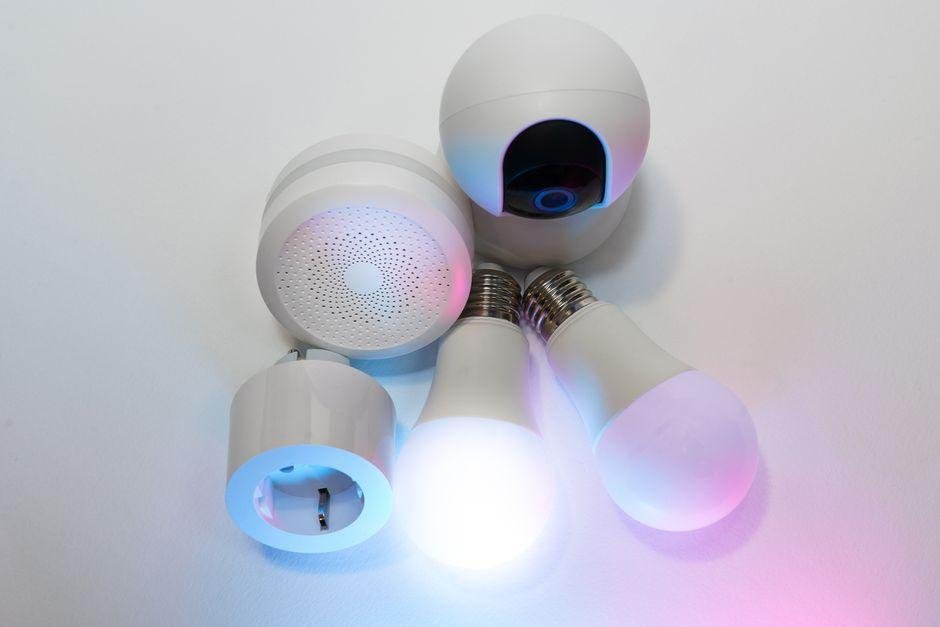
Choosing between Wyze and Eufy comes down to your home budget and performance goals. Both brands allow you to build an effective security system without paying premium prices for native Nest hardware.
Wyze delivers exceptional value for whole-home coverage. If you need to monitor five or six rooms without spending heavy cash, Wyze camera models let you cover every entry point affordably. You get reliable motion alerts, sturdy hardware builds, and simple app controls. The primary drawback involves slightly longer video load times when streaming through cloud servers during peak traffic hours.
Eufy takes top honors for speed and local data privacy. When you connect Eufy gear, smart displays bring up live streams faster because the hardware processes video locally through a central hub. Saving footage onto local memory cards also helps you avoid monthly subscription fees while keeping video clips inside your house.
For the best overall smart home setup in 2026, Eufy wins by a slight edge. Lower streaming delays on Nest displays and local video options make it ideal for high-priority areas like front doors. Wyze remains a top pick for monitoring secondary rooms or detached garages where a few seconds of delay will not cause issues. Confirm current pricing on the manufacturer’s site before picking your final hardware bundle.