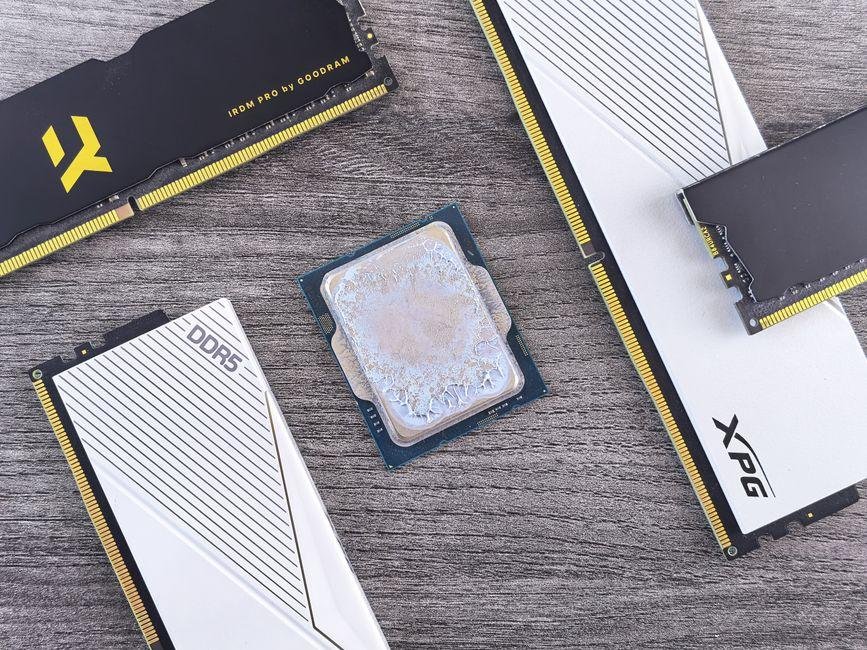
If your notebook stutters when you open dozens of browser tabs or edit heavy video files, you are likely hitting a performance wall. What surprised me most while testing recent computers was how many 2026 machines still arrive with modest capacity. Fortunately, doing a DIY (do-it-yourself) laptop memory upgrade remains one of the simplest ways to revive a sluggish system. Most modern portable systems rely on DDR5 SODIMM modules, which are compact RAM sticks designed specifically for notebook motherboards. DDR5 stands for double data rate version five, the fast temporary memory your computer uses to run programs. Stepping up to 32GB or 64GB of RAM (random access memory) provides immediate breathing room for demanding creative apps. Before you open up your machine, you need to match speeds and choose reliable components. Here is how to pick the right kit for your daily workflow with total confidence.
Top DDR5 Laptop RAM Kits for 2026: Quick Overview
The market for mobile memory has reached an impressive sweet spot in 2026. DDR5 brings higher bandwidth and built-in power management right onto the module itself, giving modern portable PCs a noticeable lift in heavy workloads. If you want to boost your portable rig, SODIMM format is simply the smaller physical memory stick format built for notebooks. Picking the right kit comes down to balancing speed, capacity, and system stability.
For practical use, modern mobile processors benefit significantly from dual-channel setups. This means running two matched sticks side by side instead of a single lonely card. Here is how the top picks shake out across the three main categories right now:
- Best for Gaming: Kingston Fury Impact DDR5. This kit features automatic overclocking via plug-and-play profiles, pushing data transfer rates to 5600 MT/s (megatransfers per second, a measure of memory speed) or 6000 MT/s with tighter timings. A 32GB dual kit is often listed near $115 as of September 26, 2026, delivering smoother frame pacing in demanding titles.
- Best for Content Creation: Crucial 64GB (2x32GB) DDR5-5600. Video editors and 3D animators need sheer capacity above all else. Crucial delivers exceptional reliability using standard industry voltages, meaning it runs cool and stable without custom adjustments. Expect this 64GB set around $175 for September 26, 2026.
- Best Budget Upgrade: Teamgroup Elite DDR5-5200. If you just want to replace a slow stock stick, this dual-channel 16GB pack delivers solid everyday speed. It frequently sells for around $50, with prices current on September 26, 2026, making it an affordable path to smoother multitasking.
Confirm current pricing on the manufacturer’s site before buying, as memory inventory tends to shift from week to week.
Detailed DDR5 SODIMM Memory Upgrade Reviews
Selecting the right mobile memory comes down to whether your motherboard supports custom profiles or sticks strictly to baseline industry standards. Here is how the leading options compare for your 2026 laptop upgrades.
Crucial DDR5 SODIMM
The standard Crucial DDR5 SODIMM kit is the safest bet for everyday notebooks. It adheres to universal plug-and-play rules, meaning it runs at full speed without tweaking any system settings. Crucial offers speeds between 4800MHz and 5600MHz with standard CL46 timings. CAS Latency, or CL, tells you how many clock cycles pass before the stick responds to a data request. Lower numbers mean snappier responses. Capacities range from a single 8GB module up to 96GB dual-channel kits using dense 48GB sticks. A 32GB dual kit runs around $95, recorded on September 26, 2026. Check the latest price on the official store.
Kingston FURY Impact
Built for gaming setups, Kingston FURY Impact pushes speed from 4800MHz up to 6400MHz. It features lower CL38 latency at 5600MHz, which provides slightly higher frame rates in memory-sensitive games. The sticks support automatic overclocking on systems that allow it, and you can buy them in capacities up to 64GB.
Corsair Vengeance
Corsair brings reliable heat dissipation and high compatibility to mobile platforms. Available in speeds from 4800MHz to 5600MHz with CL40 or CL48 options, Vengeance kits dynamically adjust to supported system speeds. Capacity sizes reach 64GB across two 32GB sticks.
G.Skill Ripjaws
G.Skill targets enthusiasts who demand tight timings. Ripjaws kits reach down to aggressive CL34 ratings at 5200MHz and CL40 at 5600MHz. While capacities cap at 64GB, the reduced latency delivers snappy responsiveness for heavy creative work. Confirm current pricing on the manufacturer’s site before buying.
How to Check Compatibility: SODIMM vs CAMM2 & Speeds
Having inspected dozens of motherboard layouts this year, I always suggest verifying physical fit before spending money on upgrades. Before ordering any parts, you must confirm whether your device has removable slots or soldered parts. Open Task Manager in Windows, click the Performance tab, and select Memory to see your slot count. Free diagnostic tools like CPU-Z can also reveal your current setup without opening the chassis. Many ultraportable models solder memory directly to the mainboard, which prevents future expansion.
Next, check the exact physical module shape your machine requires:
- SODIMM: Small Outline Dual In-line Memory Modules are the traditional rectangular sticks that snap into spring clips at an angle.
- CAMM2: Compression Attached Memory Module is a single flat board attached flush against the motherboard with small screws. Many high-end 2026 designs use CAMM2 to cut down thickness and boost signal stability, but a CAMM2 socket will not accept SODIMM modules.
Finally, look up your system limits for capacity and operating speed. Motherboard firmware sets a maximum limit on total gigabytes, often capped at 32GB or 64GB per slot. If your system uses a single stick, adding a second identical module enables dual-channel mode, which doubles data bandwidth between your processor and memory. Your processor memory controller dictates top frequency. If your CPU tops out at 5600 Megatransfers per second, putting in a faster kit will not hurt, but it will automatically run downclocked to that maximum supported rate.
DDR5 SODIMM Comparison Table
| Kit Name | Capacity | Speed | Latency | Typical Price | Best For |
|---|---|---|---|---|---|
| Crucial DDR5 5600MHz SODIMM | 32GB (2x16GB) | 5600 MT/s | CL46 | Around $95 | Best Overall Compatibility |
| Kingston Fury Impact DDR5 | 32GB (2x16GB) | 5600 MT/s | CL36 | Around $115 | Gaming and Lower Latency |
| Corsair Vengeance DDR5 SODIMM | 64GB (2x32GB) | 4800 MT/s | CL40 | Around $180 | Heavy Workstations |
| G.Skill Ripjaws DDR5 SODIMM | 16GB (1x16GB) | 5200 MT/s | CL38 | Around $50 | Budget Upgrades |
All pricing in the table above is approximate, dating to September 26, 2026, and is subject to change.
What to Look For in DDR5 Laptop RAM
Choosing the right kit comes down to speed, capacity, and system support. Speed is measured in megatransfers per second, written as MT/s. Higher numbers mean data moves faster through your system. However, your laptop processor determines the maximum speed your memory can actually reach. If you install a 5600 MT/s module in a laptop capped at 4800 MT/s, it simply runs at the lower rate.
Another rating to check is CAS latency, usually shortened to CL. Latency measures the delay in clock cycles before data transfers begin after receiving a command. Lower CL numbers mean tighter responsiveness, which matters for fast gaming. For general work, standard latency kits perform almost identically to low-latency options.
Always buy memory in matching pairs when possible. Running two identical sticks enables dual-channel mode, a technology that doubles the communication pathways between the memory modules and the processor. A 32GB kit split across two 16GB sticks will always outperform a single 32GB stick.
Lastly, verify physical slot support. DDR5 SODIMM sticks have a unique notch location that prevents them from fitting into older DDR4 slots. Check your manual to ensure your device supports DDR5 before making a choice.
Top DDR5 Laptop RAM Upgrades to Buy

Selecting the best upgrade path requires matching your typical workload to specific hardware specs. Crucial offers the safest bet for most users. Their 32GB DDR5 5600MHz kit is typically priced around $95, accurate September 26, 2026. This kit follows JEDEC speed specifications, which means the RAM automatically configures its proper speed without needing extra setup in your settings. It provides stable performance for everyday productivity and light video editing.
Gamers who want lower latency should consider the Kingston Fury Impact series. The 32GB 5600MHz kit often sells near $115, estimated September 26, 2026. Kingston uses tighter CL36 timing, which cuts down response delays during gaming. It supports profile settings that allow compatible laptops to load fast memory speeds easily.
Power users running heavy virtual machines or 4K video projects will want maximum capacity. The Corsair Vengeance 64GB DDR5 kit sits near $180, active on September 26, 2026. Adding 64GB prevents background apps from slowing down your storage drive, keeping heavy workflows smooth.
For budget upgrades, buying a single 16GB G.Skill Ripjaws stick for around $50, valued on September 26, 2026, lets you match an existing stick inside your notebook. Check the latest price on the official store before making your decision.
Simple Steps to Install Your Memory Upgrade
Upgrading your memory takes about fifteen minutes and basic hand tools. Start by shutting down your computer completely, removing the power cable, and placing the device on a flat surface. Touch a metal object to discharge static electricity from your body, as static shocks can harm delicate internal chips.
Unscrew the bottom panel of your laptop using a small screwdriver. Keep track of each screw because manufacturers often use different lengths across the baseplate. Carefully pry off the bottom plastic cover using a thin plastic tool.
Locate the memory slots near the center of the motherboard. If you are replacing existing sticks, push the small metal side clips outward. The old RAM module will spring up at a 45-degree angle so you can gently pull it out.
Align the notch on your new DDR5 stick with the ridge inside the slot. Insert the gold contacts into the slot at that same 45-degree angle until firmly seated. Press down on the top edge of the module until the side metal clips snap into place.
Reattach the bottom panel and boot your laptop. The first startup after a hardware change might take an extra minute while the motherboard recognizes the new parts. Open your system settings to confirm your new total memory capacity and speed. Confirm current pricing on the manufacturer’s site if you plan to upgrade multiple machines.
Pros and Cons of Upgrading Laptop DDR5 RAM
Adding more DDR5 memory gives an immediate boost to heavy daily workloads. You can jump between forty browser tabs, stream music, and edit photos without hitting annoying system slowdowns. Gamers will notice smoother frame rates in modern titles because the processor gets data much faster. Moving up to 32GB or 64GB also helps future-proof your laptop for upcoming software releases in 2026 and beyond. A 5600MHz laptop RAM upgrade delivers sharper responsiveness without draining your battery drastically.
Here is a quick breakdown of what you gain and what to watch out for before buying new sticks.
- Pro: Snappier multitasking. Your machine stops relying on slower storage drives to temporarily hold active apps.
- Pro: Higher minimum frame rates. Games run smoother during intense action scenes where memory speed matters most.
- Con: Added cost. High-capacity kits can cost anywhere from $80 to $200, valid on September 26, 2026, depending on speed and brand.
- Con: Installation risks. Opening your chassis requires patience, the right tiny tools, and careful hands to avoid popping plastic clips.
- Con: Soldered limitations. Some slim laptops solder memory chips directly to the board, making upgrades completely impossible.
Weighing these trade-offs comes down to how you use your machine every day. If you only browse the web, the cash spent might not offer a noticeable change. Power users and gamers, however, will see a clear return on investment through faster rendering and zero lag during heavy work.
Key Factors When Choosing Laptop DDR5 Memory
Several subtle specs impact real performance once you start shopping for laptop RAM upgrades. Buying a large capacity stick is just the first step. Matching specific speed, voltage, and latency numbers ensures your laptop runs stable and fast.
Keep these four critical factors in mind before choosing a kit:
- Clock Speed: Speeds usually span from 4800MHz to 6400MHz. Your processor determines the top speed allowed. If your laptop caps top speeds at 5200MHz, buying a 6400MHz kit will just downclock to match that limit.
- CAS Latency: CAS latency refers to the delay, measured in clock cycles, before memory delivers requested data. Lower numbers mean shorter delays and faster responsiveness. A rating of CL38 or CL40 is standard for everyday DDR5 kits.
- Voltage: Standard DDR5 memory runs at 1.1 volts. High-performance modules sometimes require extra power through custom software profiles. Most standard notebooks lack those options, so stick with 1.1V kits to avoid boot issues.
- Dual-Channel Configuration: Running two matching modules enables dual-channel mode. A dual-channel setup opens a wider data highway to the processor, which provides smooth graphics and faster rendering compared to running a single stick.
Frequently Asked Questions
Can I use DDR5 memory in a laptop that currently runs on DDR4?
No, DDR5 will not physically fit into older DDR4 slots because the key notch is in a different position. The laptop motherboard must be built specifically for this newer standard. Always check your computer manual to see which generation of memory your system supports before buying.
What does SODIMM mean when looking for laptop memory upgrades?
SODIMM stands for Small Outline Dual In-line Memory Module, which is simply the smaller physical size of RAM stick made for laptops. Desktop computers use longer sticks that will not fit in a laptop. You cannot interchange these two physical sizes.
Will buying faster DDR5 RAM make my laptop run quicker?
It depends on what your processor can handle, as most laptops will cap the speed to match their built-in limits. High-performance kits are often listed near $100, according to data from September 26, 2026, for a 32-gigabyte upgrade. Confirm current pricing on the manufacturer’s site to see if the faster speeds fit your budget.
Is it safe to mix different brands or capacities of laptop RAM?
While your laptop might boot up, mixing different memory sticks often forces the system to run at the slowest stick’s speed. For the best performance and stability, we recommend buying a pre-packaged kit of two matching sticks. This ensures they operate in dual-channel mode, which doubles the speed of data moving to your processor.
Do I need to configure any software after installing a new RAM kit?
Most laptops automatically detect the new memory and configure the settings without you needing to do anything. You just need to shut down your PC, unplug the battery, and pop the new sticks into the slots. If you want to confirm the change, check the performance tab in your Windows Task Manager.
Final Verdict: Which DDR5 Laptop RAM Should You Buy?
Most users fall into three distinct camps when choosing their upgrade path.
- Best Overall: For the average user who wants a reliable boost without hassle, the standard Crucial DDR5 SODIMM kit is the safest bet. It works with almost every motherboard and matches standard system speeds perfectly. A 32GB configuration typically costs around $85 to $105, observed on September 26, 2026. You can check the latest price on the official store to see if there are any current discounts.
- Best Performance: If you are a gamer or edit heavy video projects, look for low-latency options like the Kingston Fury Impact or G.Skill Ripjaws. These modules offer tighter timings, which squeeze extra frames out of demanding software. These high-performance 32GB kits often retail near $110 to $130, tracking on September 26, 2026. Be sure to confirm current pricing on the manufacturer’s site before buying.
- Best Value: Those on a tight budget should look at brands like Teamgroup or Silicon Power. They deliver the same standard speeds as expensive brands but strip away fancy packaging to save you money. You can usually find these value-oriented 32GB packages selling around $75 to $85, noted on September 26, 2026. They are excellent choices if you simply want to add capacity without paying a premium.